Hello! Follow the steps below to add a Shared Mailbox to Outlook.
Please note that to sync a Shared Mailbox, you must have access to it first otherwise you will get an error stating you do not have permission. If you do not have access, or are not sure, you can submit an IT ticket to inquire.
Add Shared Mailbox on the new or web versions of Outlook
1. Open the Outlook desktop app or navigate to Outlook for the web.
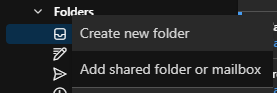
2. In the panel on the left side that lists email folders, such as Inbox, Sent, Archive, etc., right click on the Folders header and select Add shared folder or mailbox.
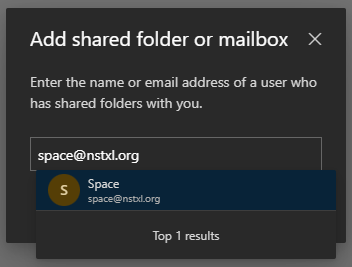
3. In the box that pops up, enter the email address of the Shared Mailbox you wish to sync. Suggested matching mailboxes will pop up; select the matching mailbox.
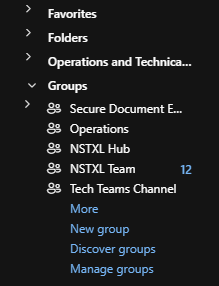
You should now see any synced mailboxes listed as headers between Folders and Groups. If done on Outlook for the web, this change will sync to your desktop Outlook app shortly, but you can restart your desktop app to force it to sync immediately.
Add Shared Mailbox on the desktop legacy version of Outlook
1. In the desktop Outlook app, click on File > Account Settings > Account Settings...
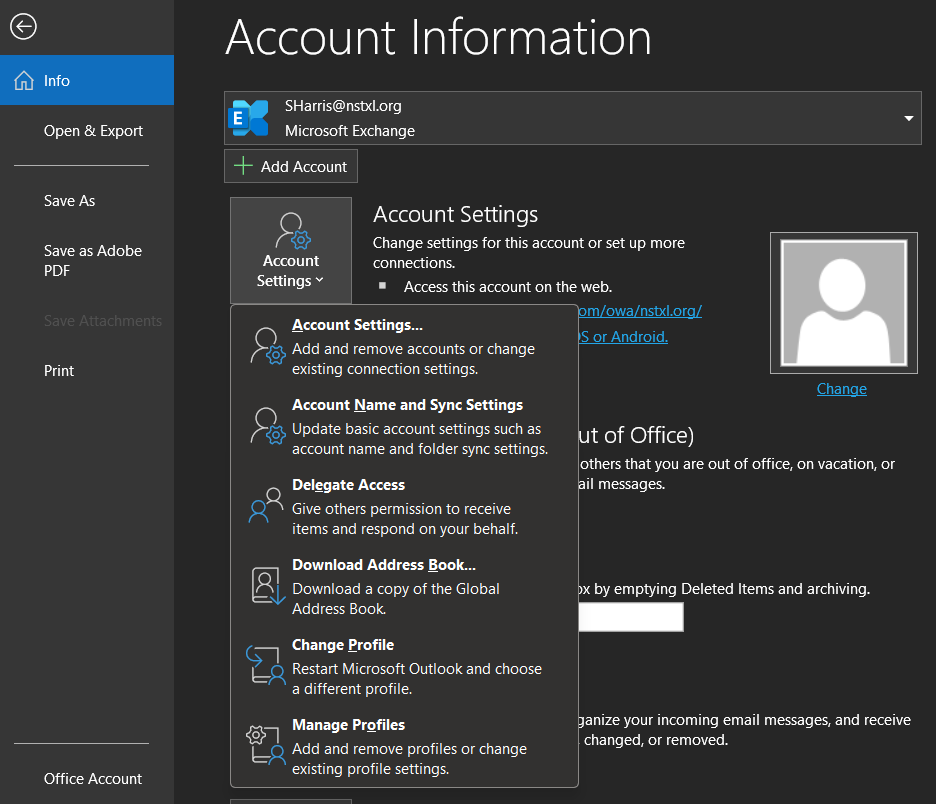
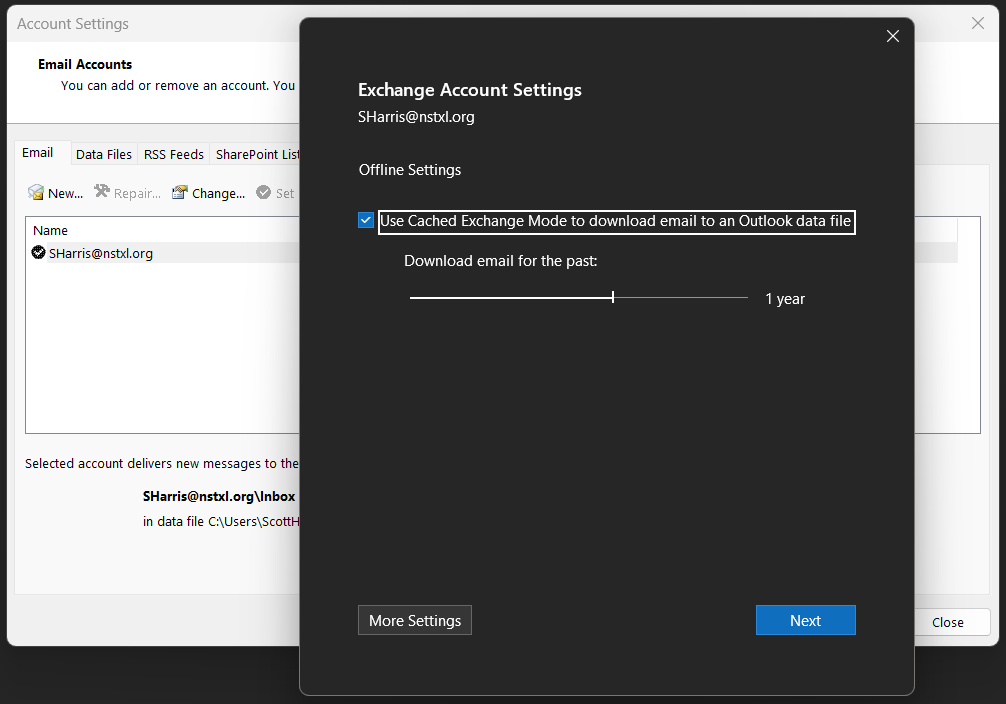
2. In the menu that opens, double-click on your account in the list and click on More Settings in the pop-up that follows.
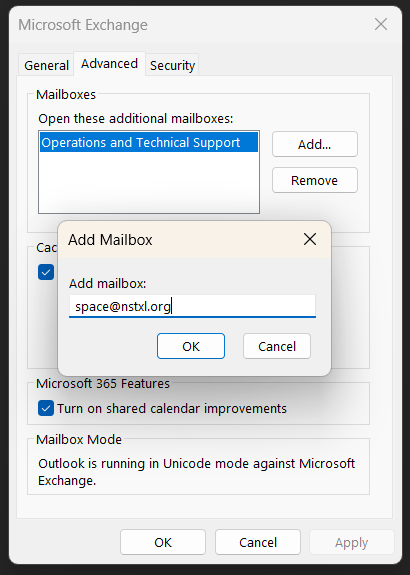
3. In the Microsoft Exchange menu that opens, go to the Advanced tab and click on Add... next to the list of synced Shared Mailboxes. Enter the email address of the mailbox you wish to sync in the pop-up and click OK.
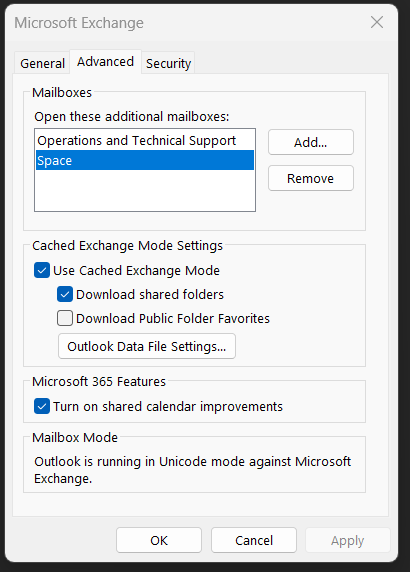
4. The mailbox should now be in the list; click on Apply at the bottom and close out of all the settings menus.
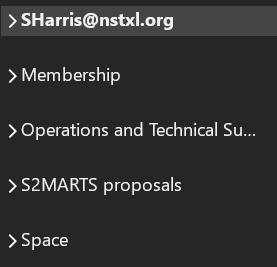
Back on the Home tab of Outlook, the synced mailbox should now be listed underneath your primary NSTXL account.