


Hello! Follow the steps below to sync Share Point documents to your computer.
Please note that to sync Share Point files you must first be a member of the Share Point site. If you do not have access, or are not sure, you can submit an IT ticket to inquire.
How to find Share Points you can access
- Follow this link to search for accessible Share Points: Share Point Site Search
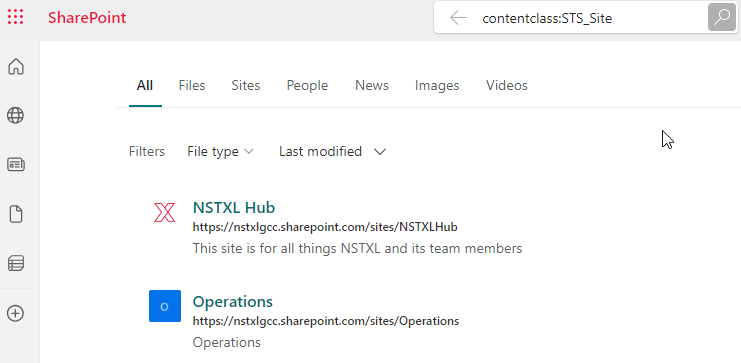
- Alternatively, you can navigate to the Share Point website and search for "contentclass:STS_Site"

The search results should include all Share Point sites you currently have access to:
How to sync & follow a Share Point site
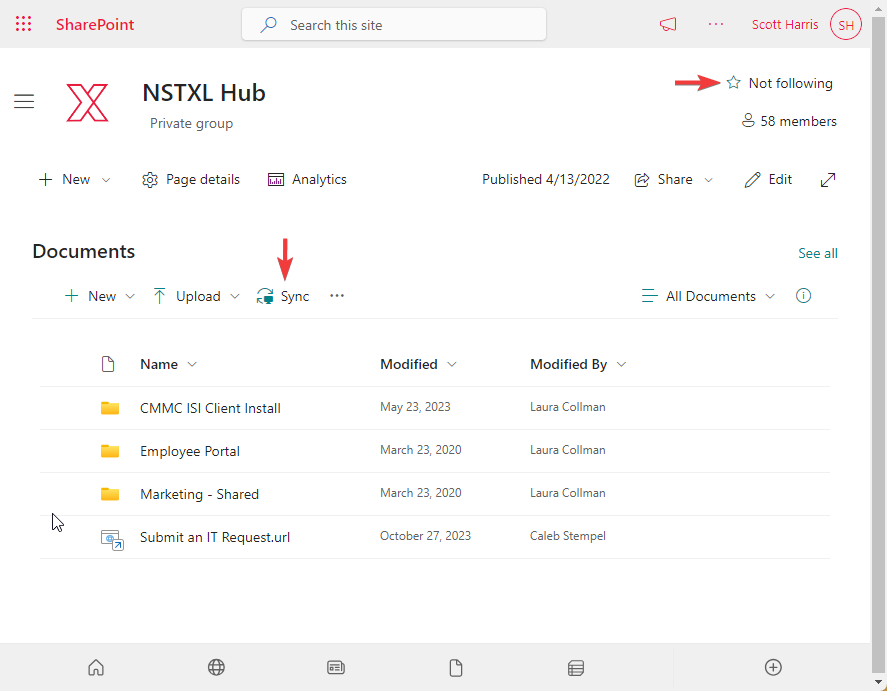
After opening a Share Point site:
- Click on the Not following option in the top right of the page to add the Share Point to your following list. This will make it easier to find in the future.
- In the Documents section, click on Sync to start syncing the Share Point documents with your computer through OneDrive
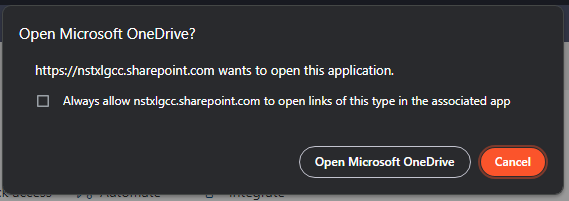
Your browser may open a message asking for permission to let OneDrive open. Go ahead and click Open Microsoft OneDrive.
OneDrive will start syncing the Share Point documents to your computer. Note that for large Share Points with many files, it may take a few minutes for OneDrive to discover all the files available.

