Set Up Company Email Signatures

Last updated: Jul 22, 2026
364
views

Hello, this article will walk you through setting up your NSTXL email signature.
Generate Your Email Signatures
Preview
| First Last Title, Department [email protected] |
 |
| nstxl.org | @national-security-technology-accelerator |
| IMPORTANT: The contents of this email and any attachments are confidential. They are intended for the named recipient(s) only. If you have received this email by mistake, please notify the sender immediately and do not disclose the contents to anyone or make copies thereof. |
| First Last Title, Department [email protected] |
 |
| innovas.io | @innovasinc |
| IMPORTANT: The contents of this email and any attachments are confidential. They are intended for the named recipient(s) only. If you have received this email by mistake, please notify the sender immediately and do not disclose the contents to anyone or make copies thereof. |
Outlook (mobile)
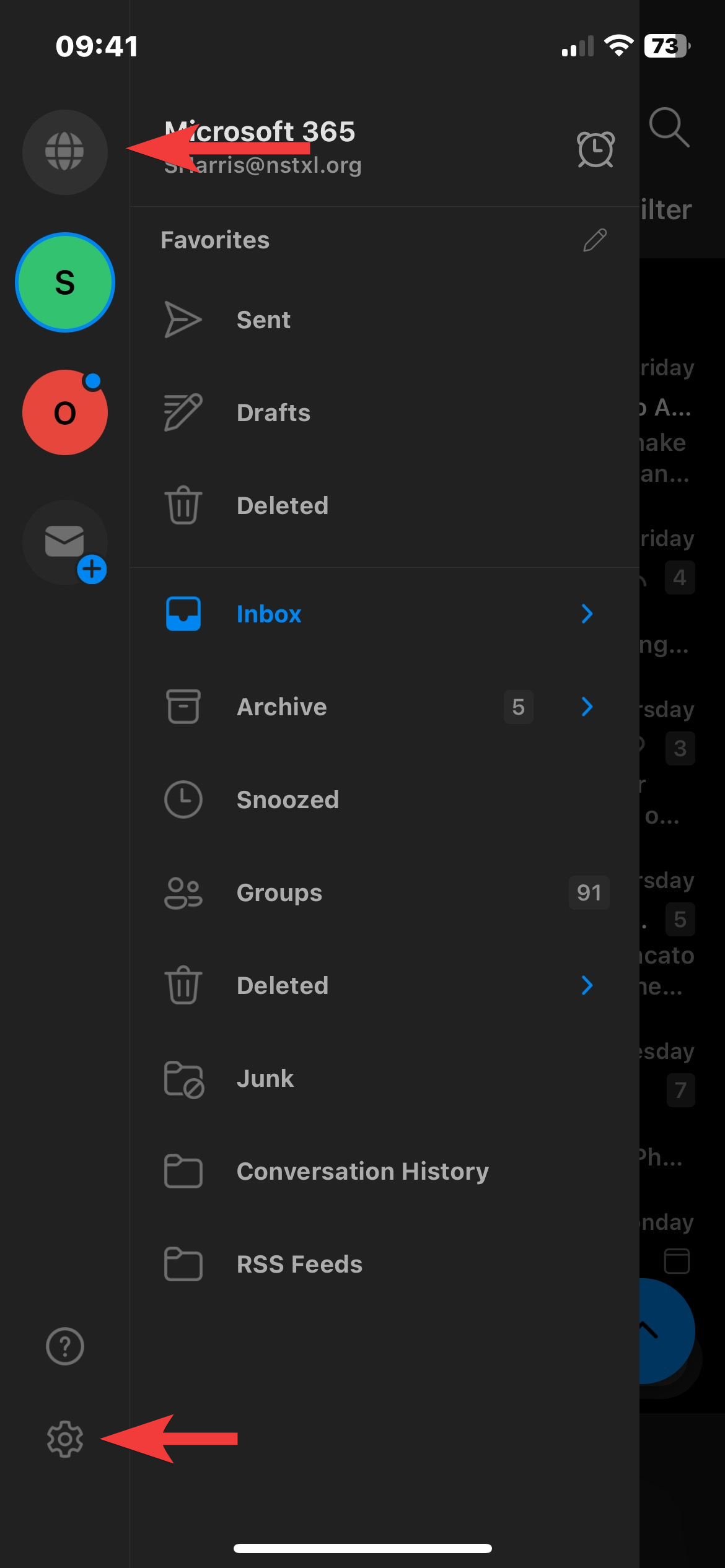
- Open the Outlook mobile app, select your profile icon in the top left, and then open settings.
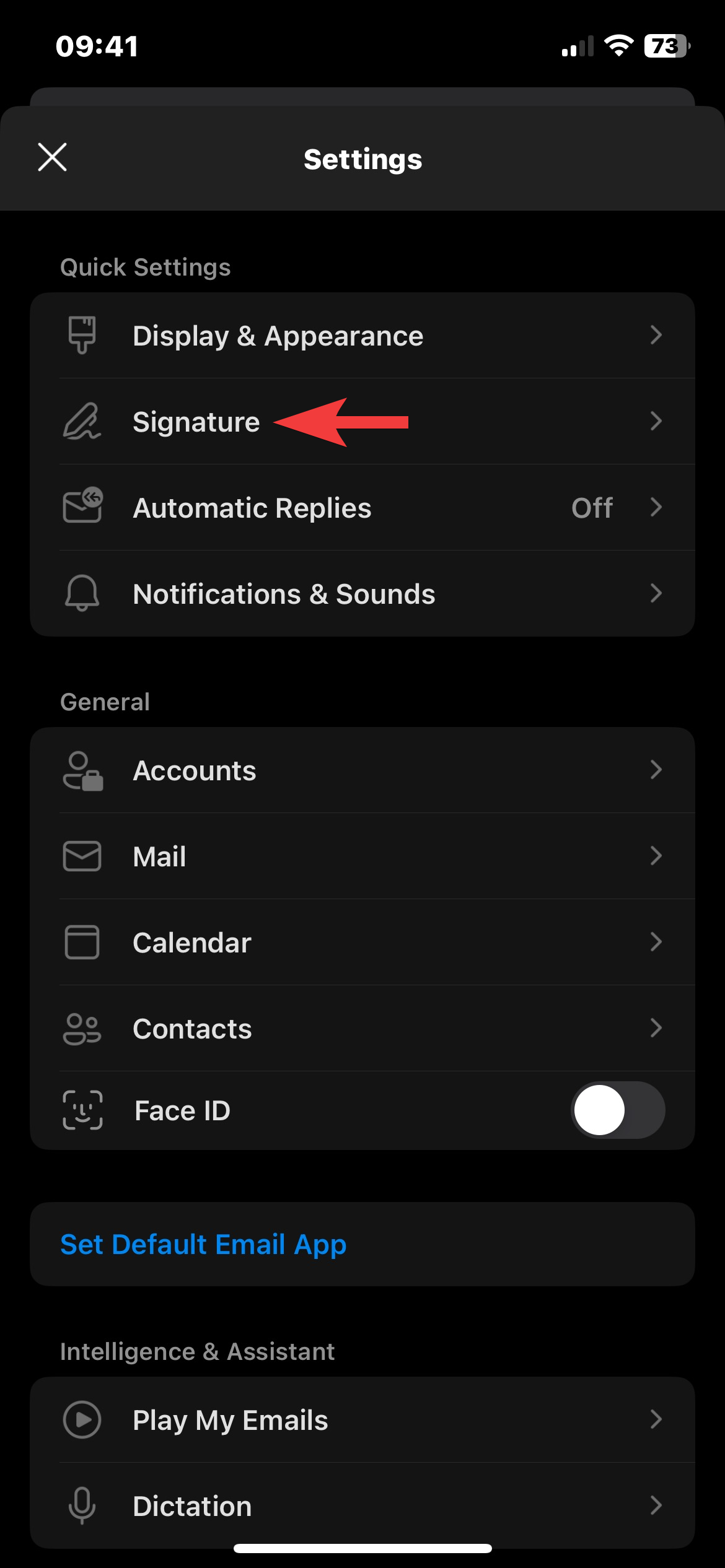
- Open Signature
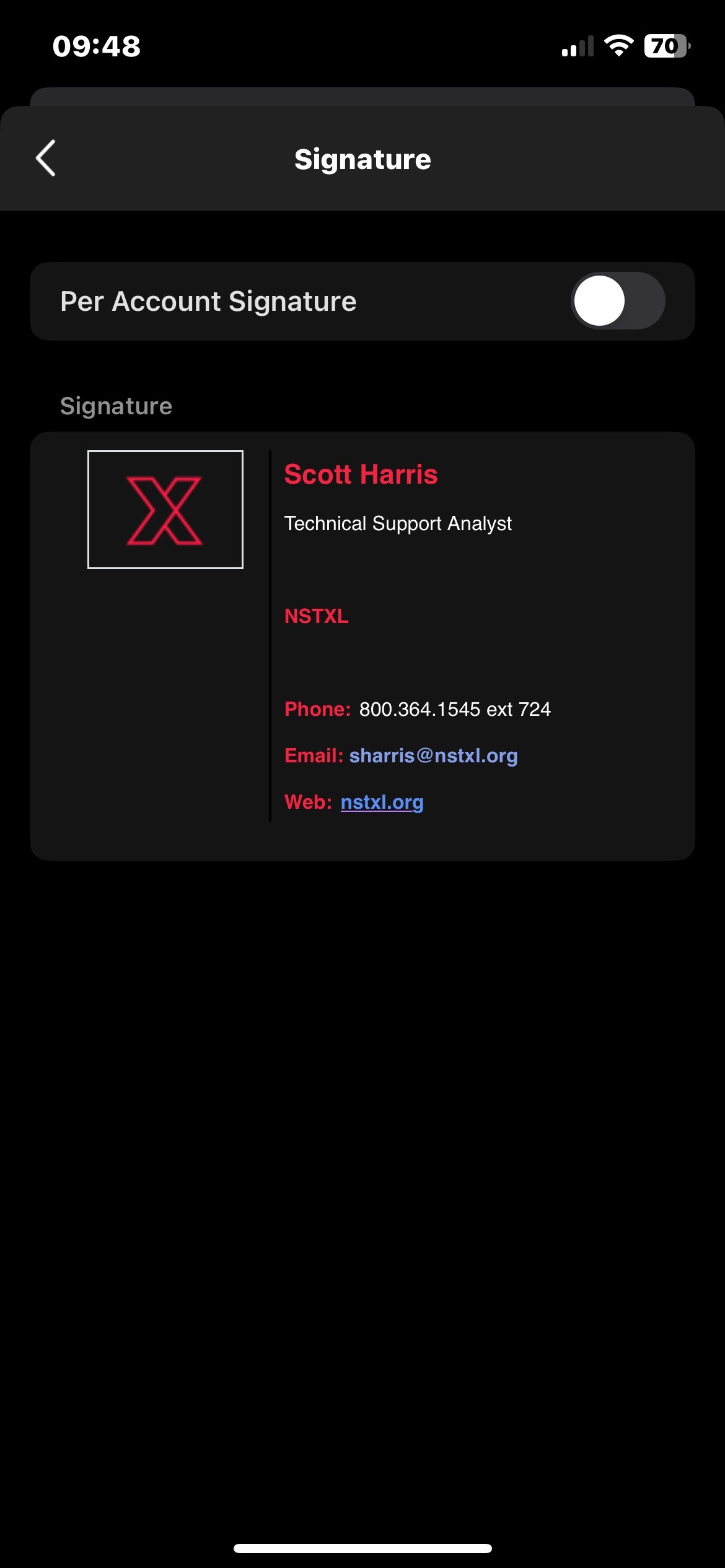
- Tap on the signature field and paste your signature. You can paste the template and modify it again, or copy/paste your signature from one of your emails in your sent folder.