

HappyFox Teams Bot

Last updated: Apr 08, 2024
66
views

Hello! This article will walk you through utilizing the HappyFox Teams bot.
There are two ways you can interact with the HappyFox bot in Teams:
- You can search the Support Center for how-to guides and support articles
- You can open a new ticket with the IT helpdesk
Before you can interact with the bot, you need to submit an IT helpdesk ticket to have the bot added to your team in Microsoft Teams.
- @mention the HappyFox bot (@HappyFox) in a reply with a question or search query and the bot will respond with articles from the Support Center that may be relevant.
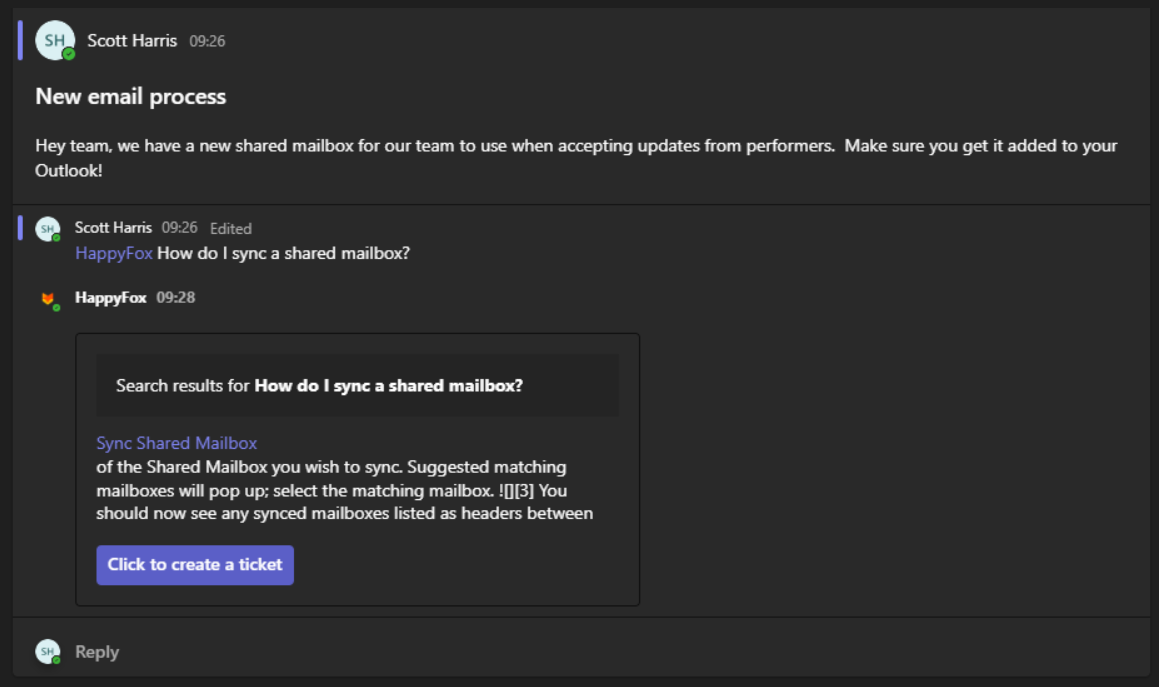
- If you cannot find a resolution to the issue in the search results, you can create a new ticket by clicking on Click to create a ticket. Teams will open a form where you can enter basic ticket information.
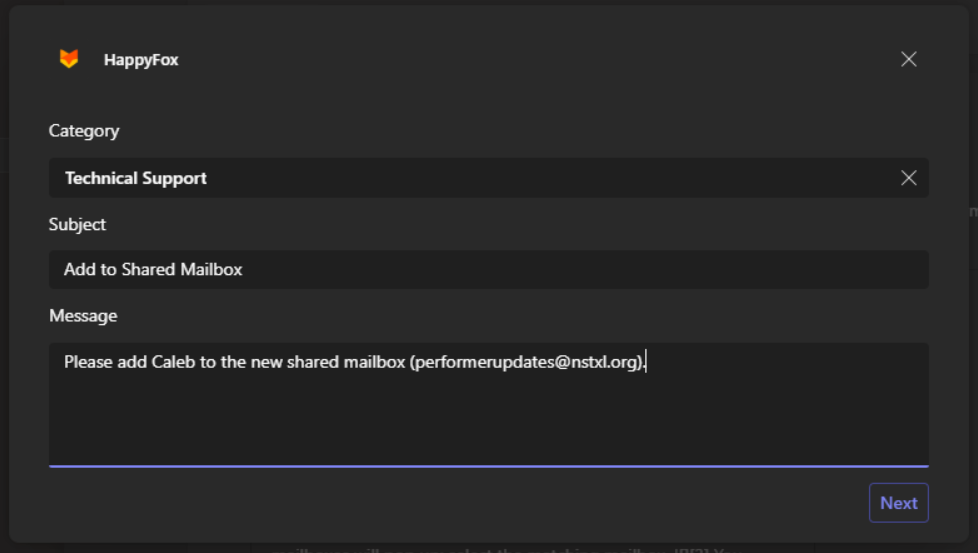
- Select the Issue Type, then click Create.

- HappyFox will reply to confirm the ticket as been created. Clicking on the ticket number will open up the ticket helpdesk page in the browser.

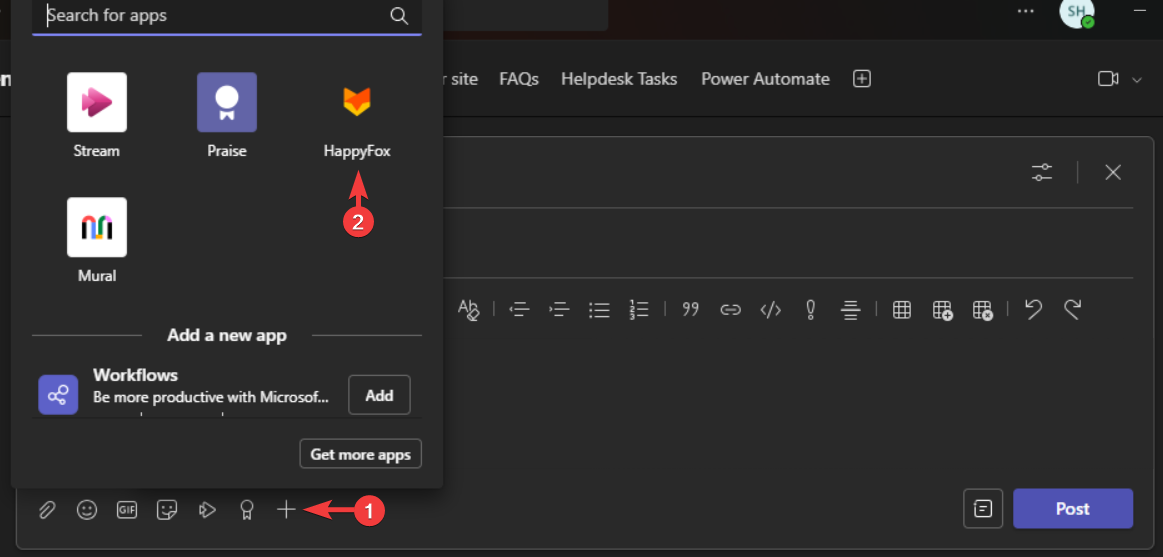
- You can also create a new ticket by starting a new post, clicking the + icon, then selecting HappyFox.

Note that the HappyFox bot will not further update the status of the ticket, but you will still receive the normal update notifications by email.

