Set up dot.card

Last updated: Apr 11, 2024
61
views

Hello! This article will walk you through setting up a dot.card including your online profile.
- Start with your dot.card and flip it over to view the QR code on back.

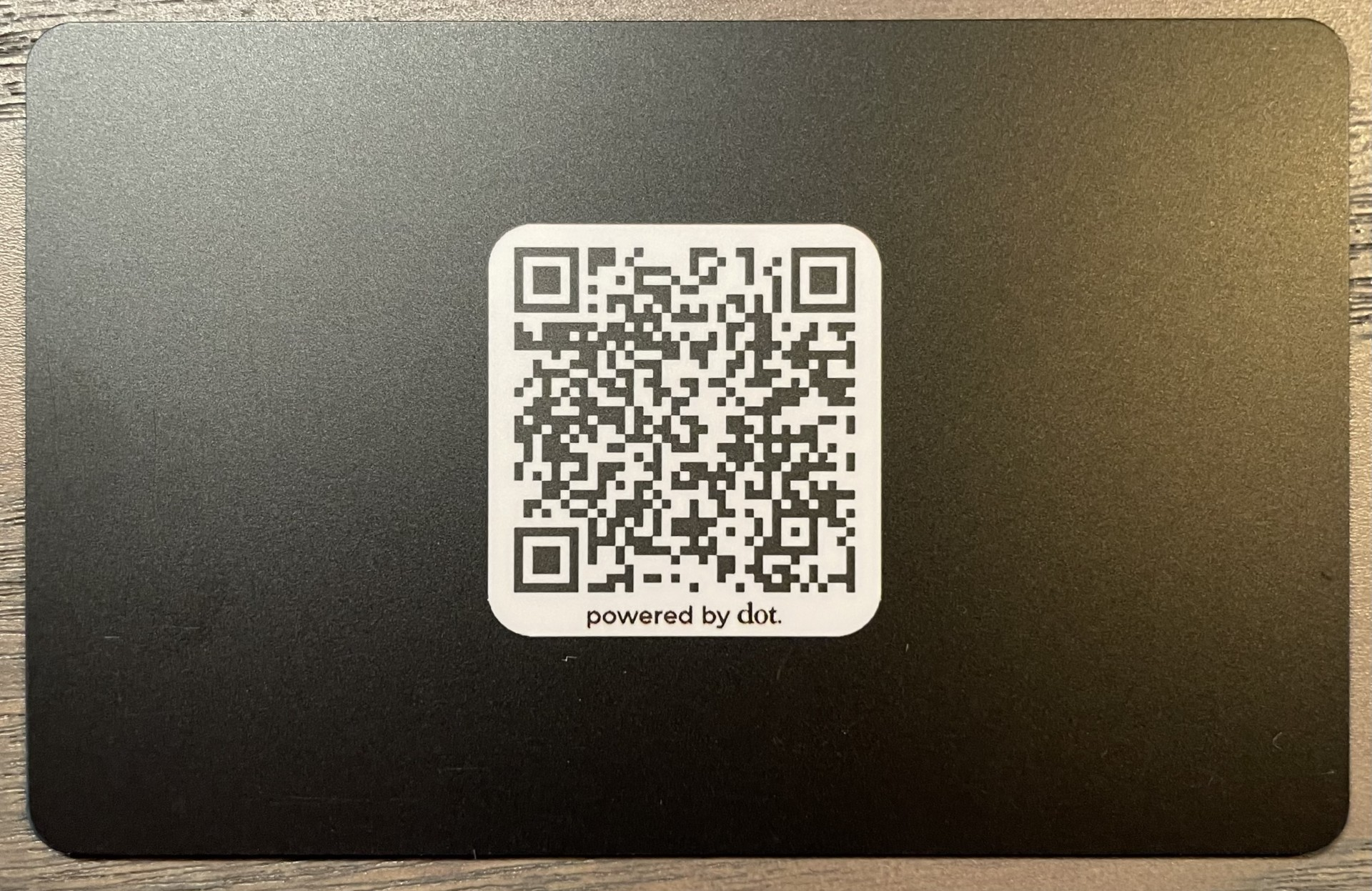
- Scanning the QR code will open the dot.card setup process in your phone/tablet's browser.
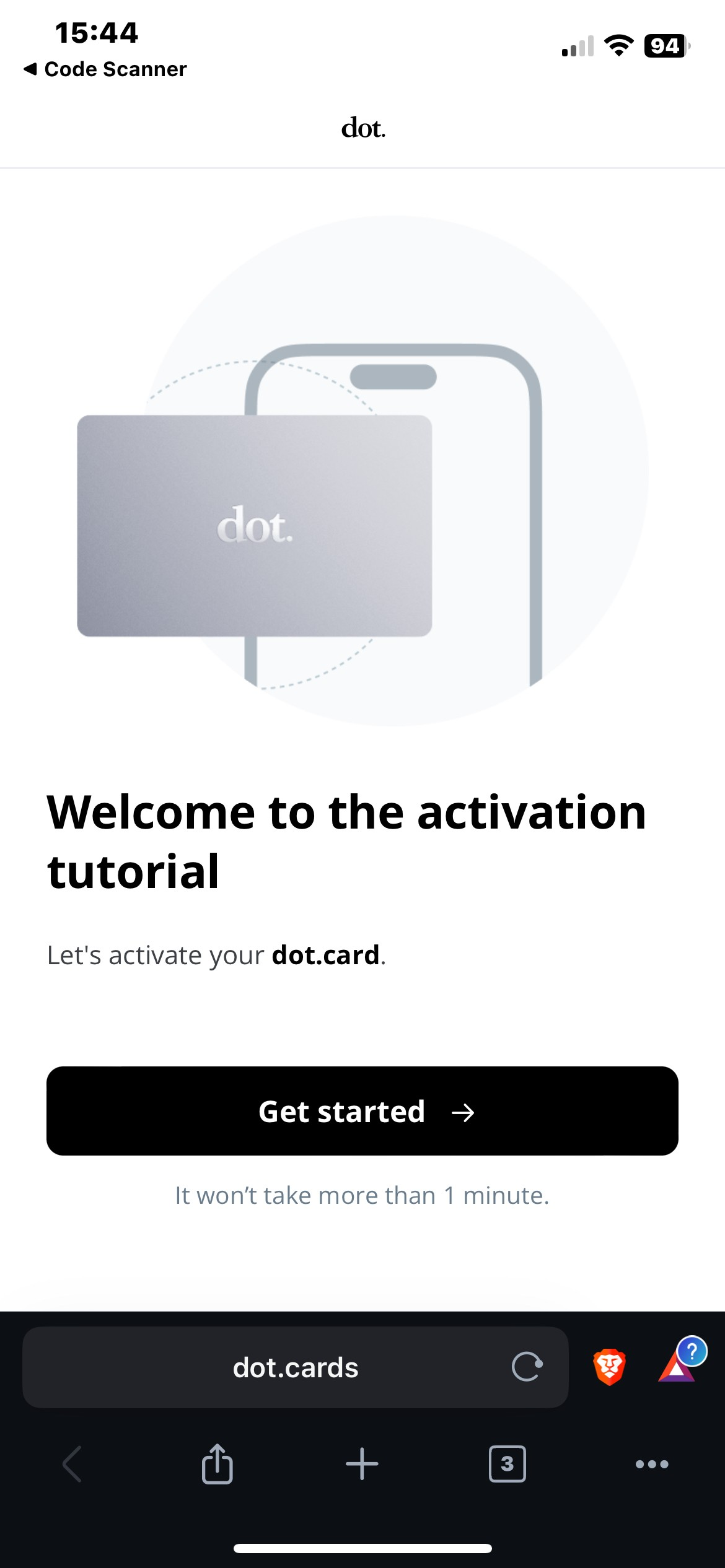
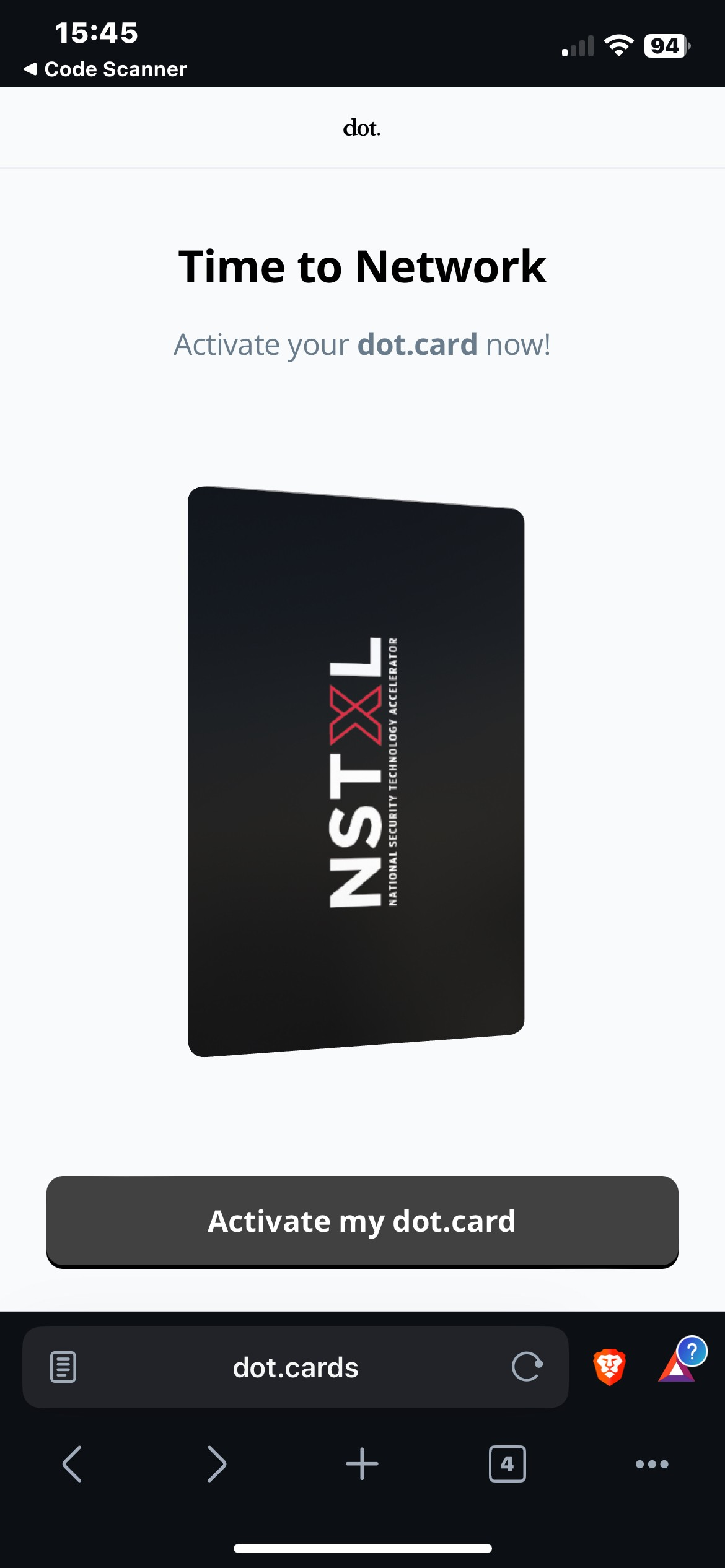
- Tap Get started, and then tap Activate my dot.card on the next page.
- If you have already set up a dot account you can sign in, otherwise tap on Sign Up to Activate.
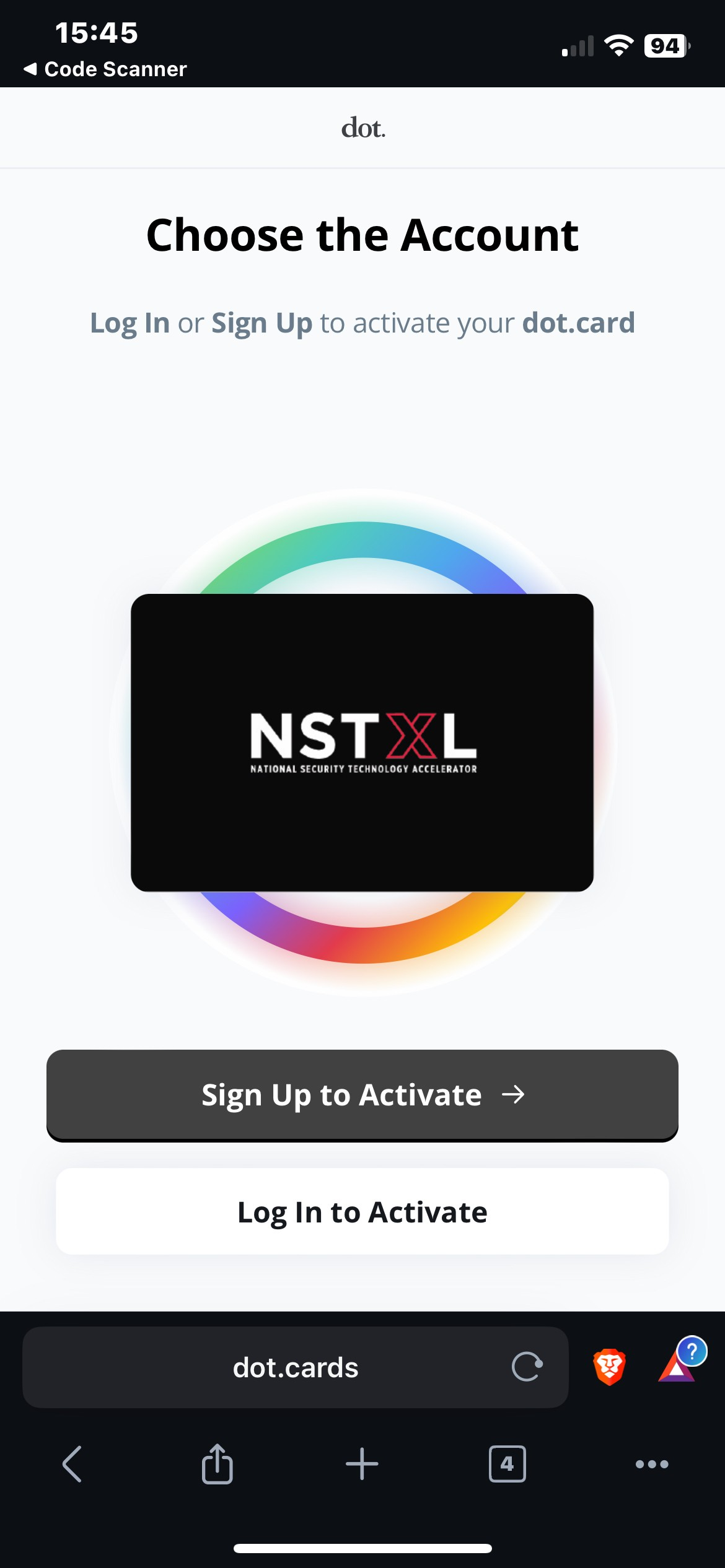
- Set up your login credentials and tap Sign Up.
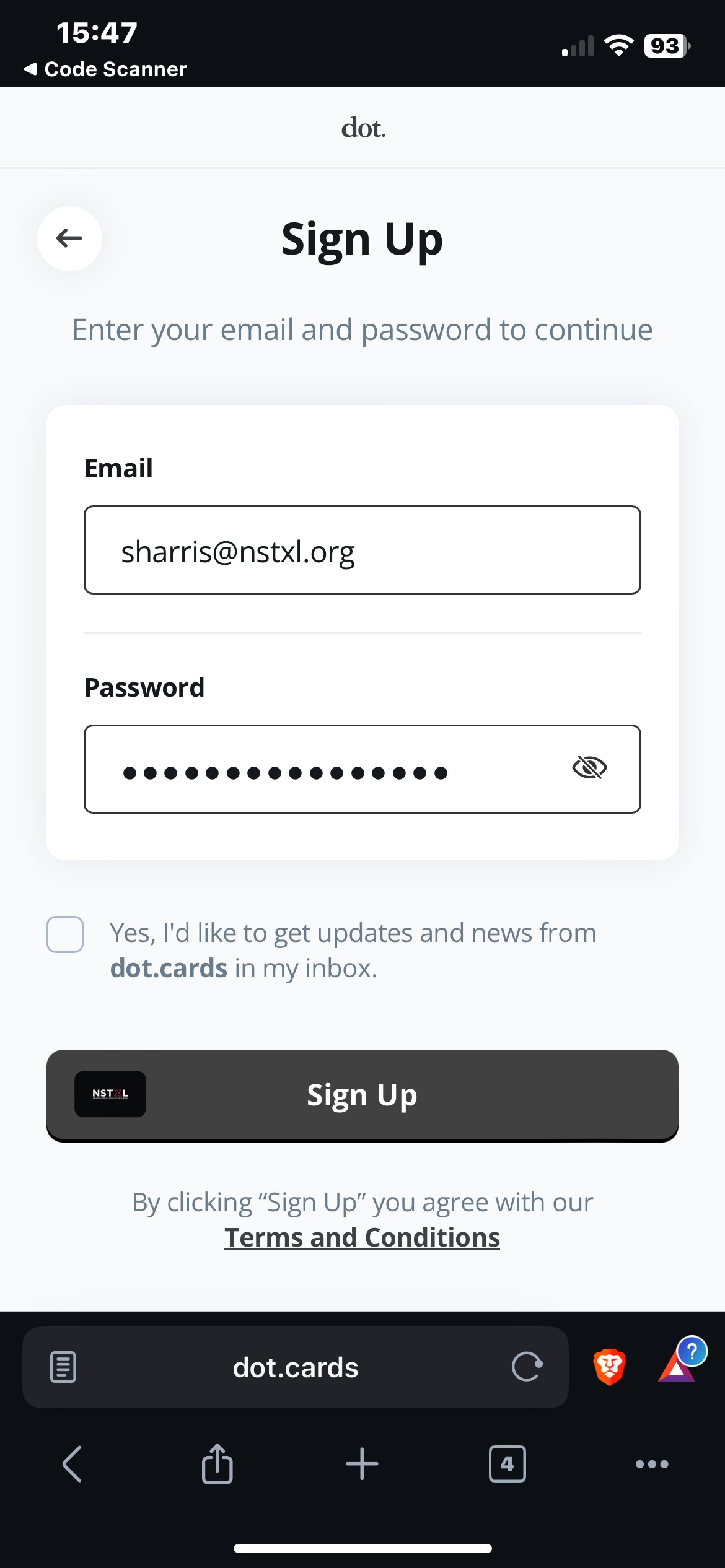
- Enter your first and last names then tap Continue.
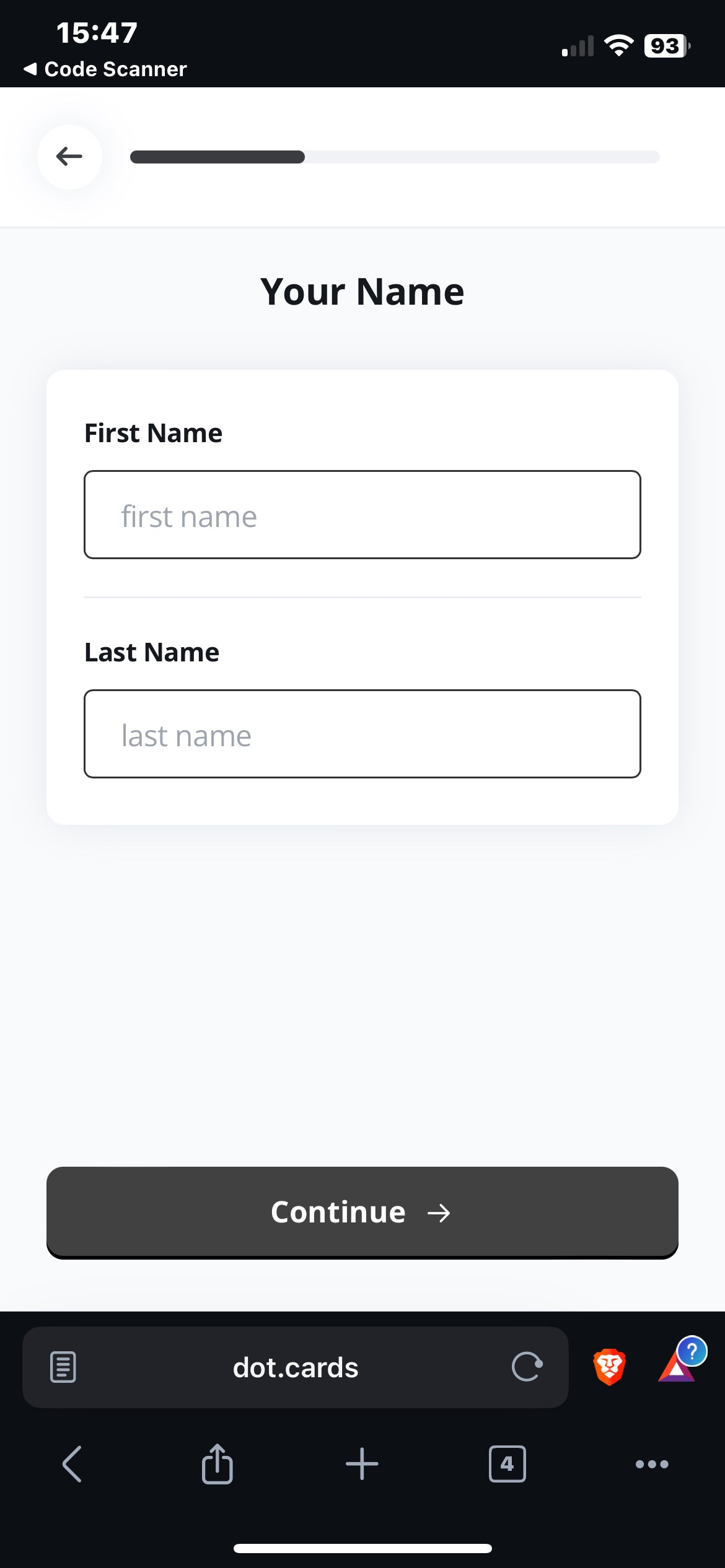
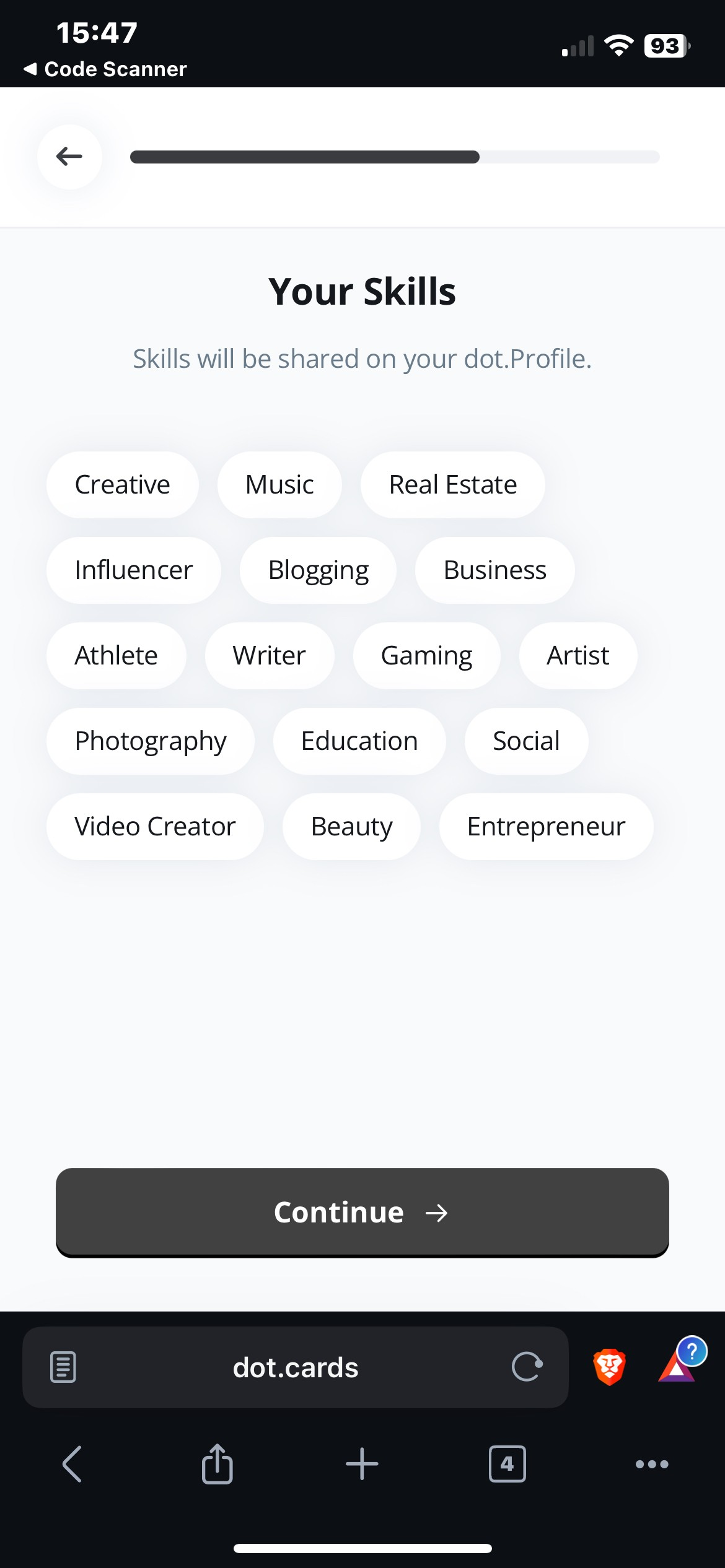
- Tap skills you would like to show off on your profile then tap Continue. You don't have to select any and can easily change these later with a larger selection of options.
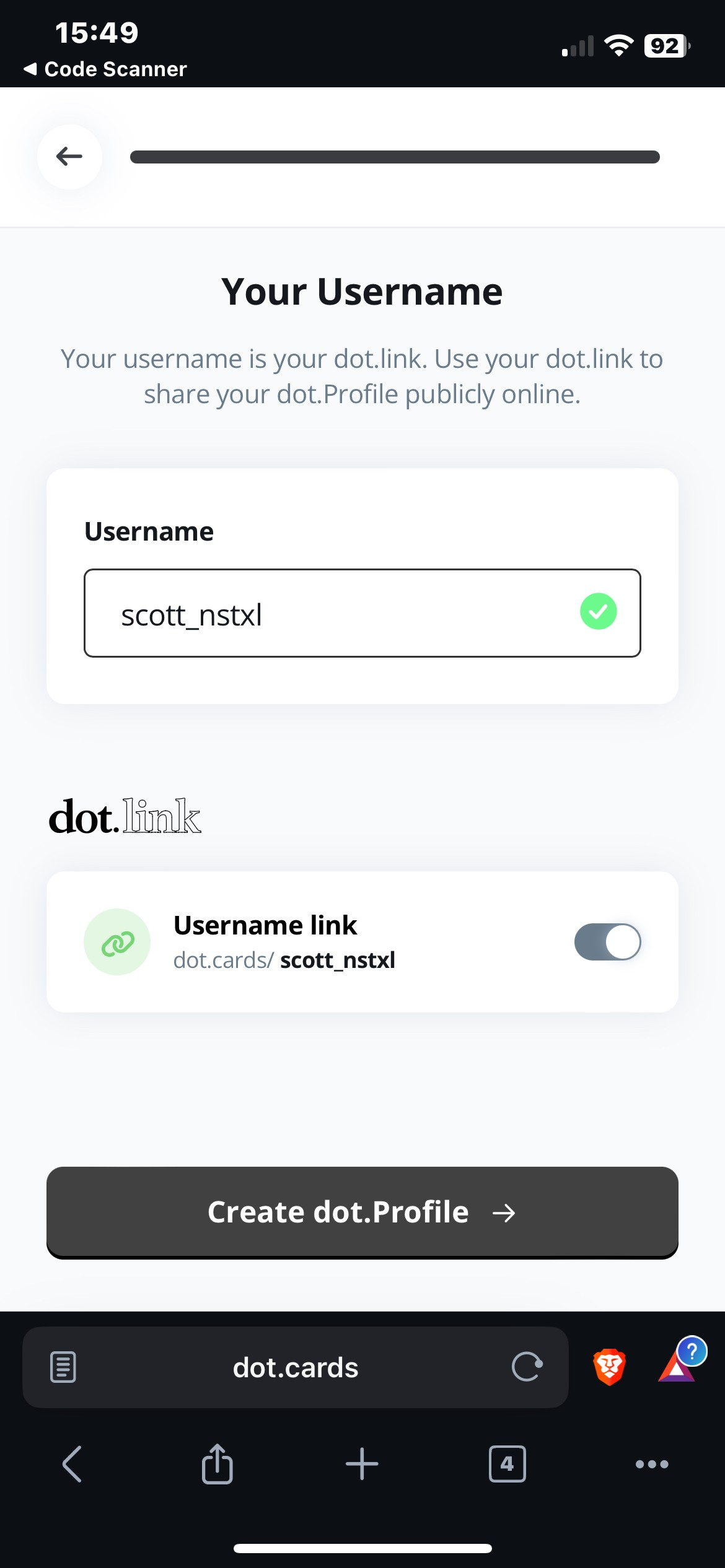
- Set a Username which will double as part of the link to your profile. Be sure to pick something simple and professional. Tap on Create dot.Profile.
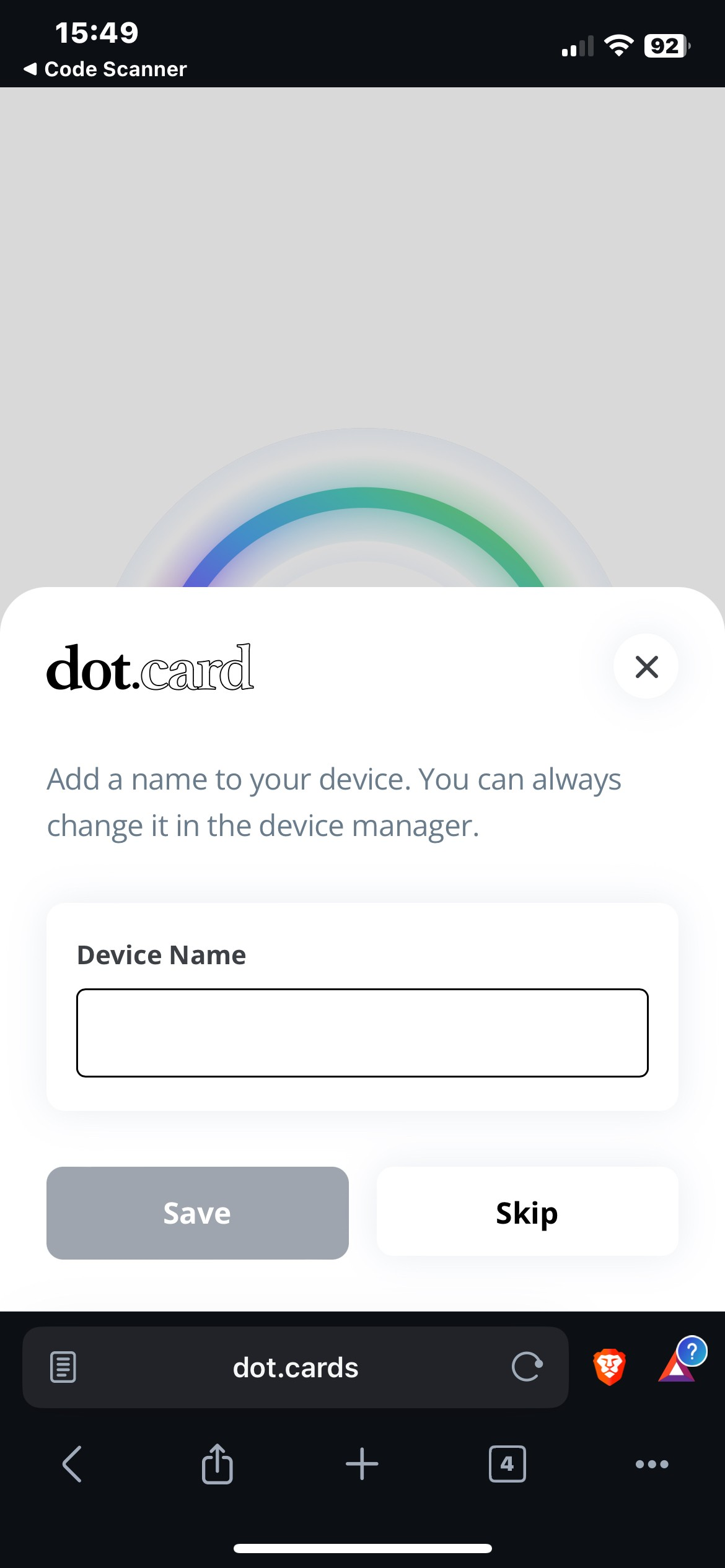
- Tap Skip when asked about setting a device name.
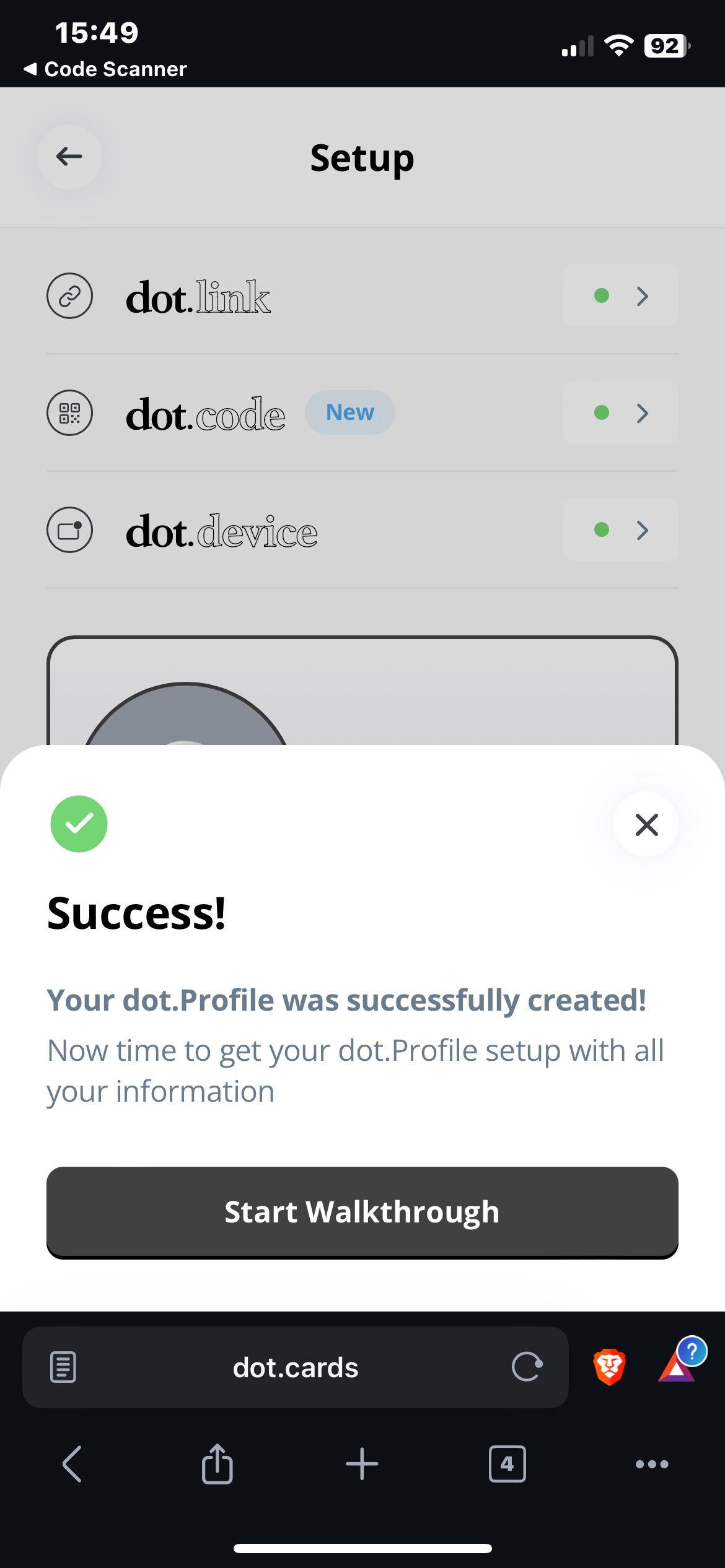
- You will be presented with a success message and the option to Start Walkthrough. Doing the walkthrough is recommend as it does a great job of showing you around all the settings and pages, but be aware it's thorough tutorial and will take several minutes to get through.
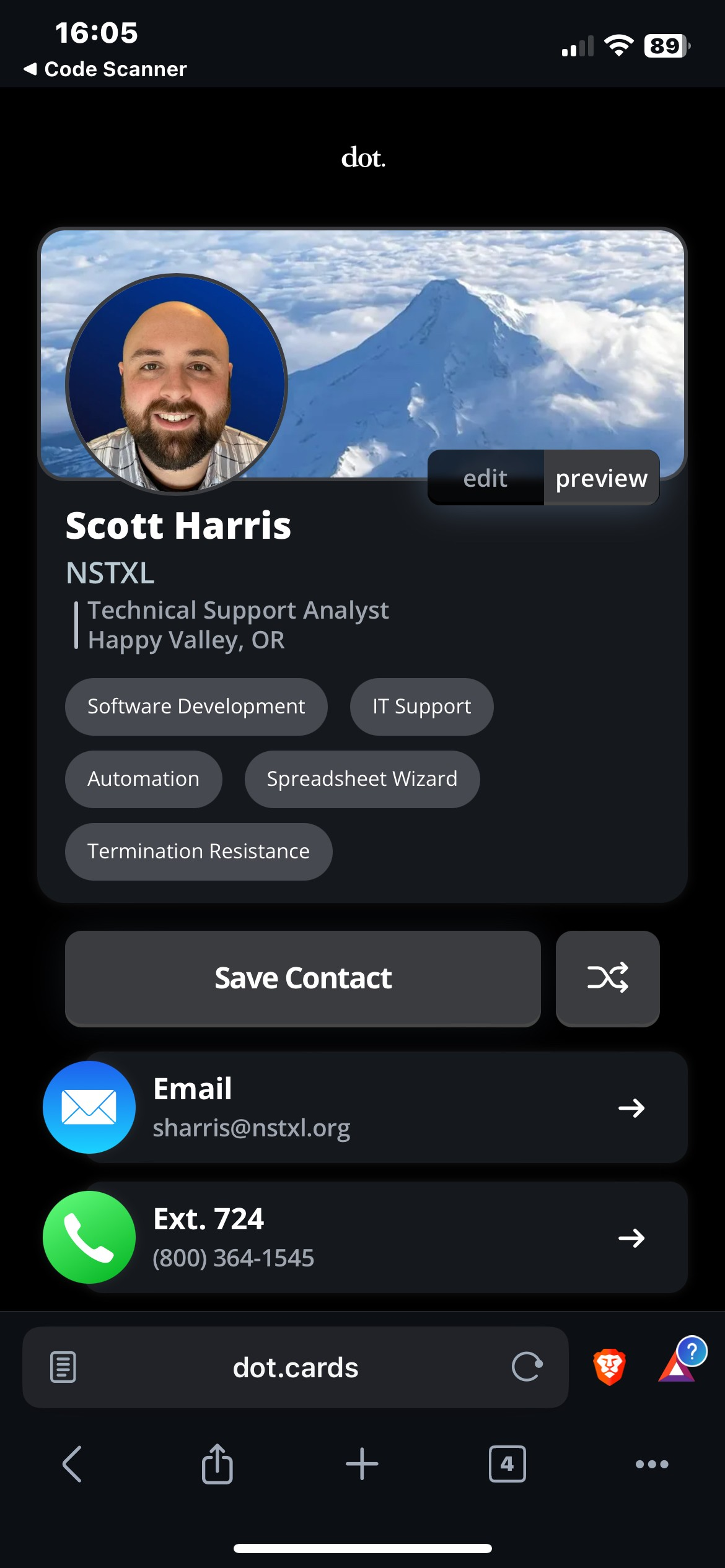
Sample profile after completing the walkthrough and adjusting some settings: