


Hello, this article will walk you through approving staff Expensify reports.
NSTXL Supervisor
You will receive an email when there are expenses for you to approve. Please approve these in a timely basis for your staff. Unless you are notified differently you are the “Final Approver” of the expense. Please be sure that staff are submitting their expenses per the guidelines set up for reimbursement and that they are submitting in a timely manner. Any questions, please reach out to Operations.
COS Expenses (Including Airfare (COS), Conference Expenses (COS), Lodging (COS), Meals and Entertainment (COS), Parking (COS), etc.)
COS categories should be used when we attend, sponsor, organize an event, or otherwise incur expenses on behalf of any of our clients such as SpEC, S2MARTS, or TReX. These expenses need only to be for the benefit of one of our clients, whether contractually stated, directed by the customer, or incurred due to typical execution of our duties related to an Other Transaction (OT). If an incurred expense is related to one of our OTs then it should be expensed in a COS category.
Non-COS Expenses (Including Airfare, Conference Expenses, Lodging, Meals and Entertainment, Parking, etc.)
Non-COS categories should be used for expenses that do not benefit one of our exisiting customers, for example a booth at SOFIC, a team meeting, or professional development. These categories represent discretionary expenses that Innovas managers have deemed necessary to develop new lines of business, enrich our employees, or perform other duties unrelated to our existing customers.
It is critical that managers understand the difference between discretionary (non-COS) expenses and expenses related to performance of duties on our various OTs (COS), and communicate to their employees. Expenses that are tagged incorrectly in Expensify are at risk of being rejected, which can cause delayed payments and incur fees/penalties. Thank you for your cooperation and please reach out to your manager with any questions.
Via Website
- Login to Expensify.
- Click Review at the top of the report and the system will begin to walk you through the entire report:
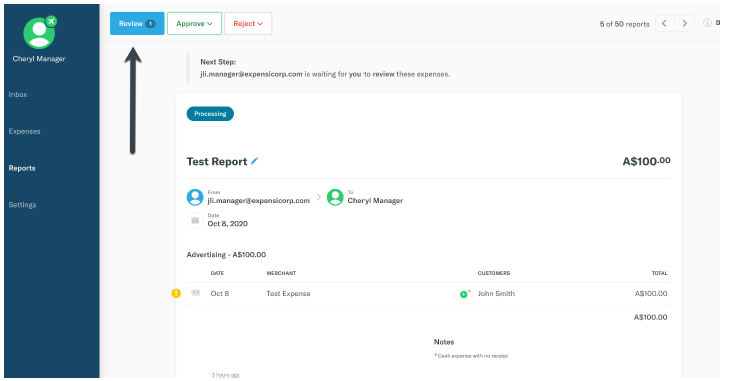
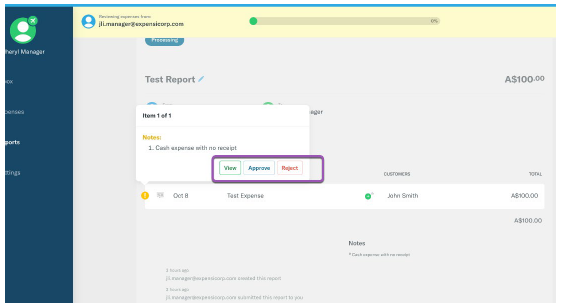
- Choose to Reject, View, or skip over an item needing review. If you wish to stop the process at any time, click the X in the progress bar.
• Reject: This will remove the expense from the report and send it back to the submitter. An email will be sent to the submitter explaining this expense has been rejected.
• View: This will allow you to open the expense so you can view and fix any incorrect data.
• Next: This will allow you to skip over the current item and move forward to review the rest of the report.
• Finish: Click this to finish reviewing the report!
- Click the Finish button if you are done reviewing or reject/edit the last item to finish the review process.
- Approve the report! Approve and Forward the report if there is another person that needs to review the report in your approval workflow, or you can Final Approve if you are the final approver.
Note: Most of our supervisors are the final approver. Also, when in Guided Review, you will automatically Approve the report adhering to your Company's Approval Workflow once you Approve the final expense on the report. You will then be immediately taken to the next report requiring your attention - making Approving multiple expenses a quick and painless process!
Via Mobile App
- Login to Expensify.
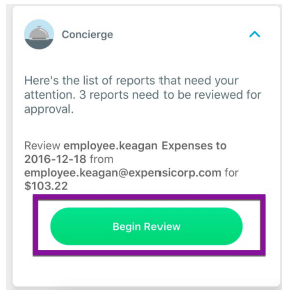
- From your Inbox, under Reports that need your attention, click Begin Review, and the system will bring you to the first expense on the oldest report in your Inbox.
- Edit the expense: Make any necessary edits to the expense by tapping the corresponding field. Be sure to address any Violations and Notes on the expense!
Notes are indicated at the top of the expense with a yellow exclamation point, while violations appear on the expense with a red exclamation point:
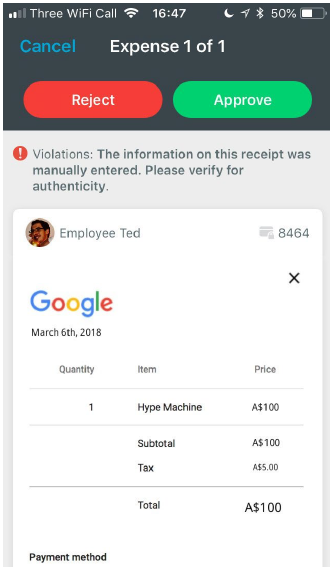
- Choose Reject or Accept at the top of the expense.
• Reject: This will remove the expense from the report and send it back to the submitter. An email will be sent to the submitter explaining this expense has been rejected, and a comment will be added to the report it was rejected from. If this is the only expense on the report, the entire report will be rejected (and the expense will remain on the report).
• If Scheduled Submit is being used, rejected expenses will auto-report to the next Open report on the policy (as if it were a new expense). If an open report does not exist, Concierge will create a new one.
• If Scheduled Submit is not being used, any rejected expenses will be Unreported in the submitter's account and need to be manually applied to a new report.
• Accept: This will move to the next expense on the report, leaving behind any outstanding violations or notes. If this is the last expense on the report, you'll be all done!
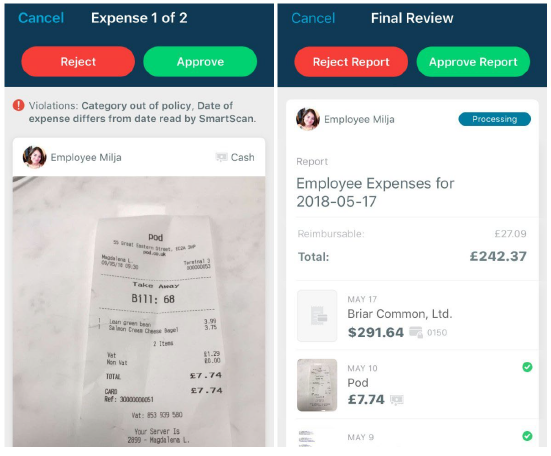
Once you have made it through all the expenses on the report, you will be all set!

