

PerformYard Goals Check-in

Last updated: Jun 09, 2024
51
views

Hello, this article will walk you through documenting a goals check-in with PerformYard.
- Login to PerformYard.
- From the dashboard, select the employee you would like to do a check-in with from the Direct Reports list.
- On the selected employee's dashboard, click + Add 360 Form.

- Select a training plan and click Next.
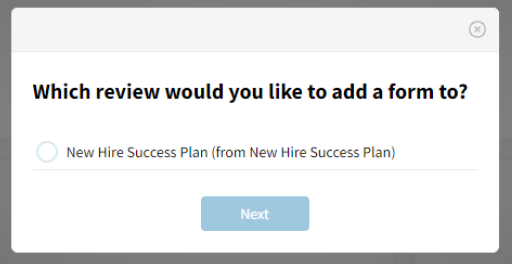
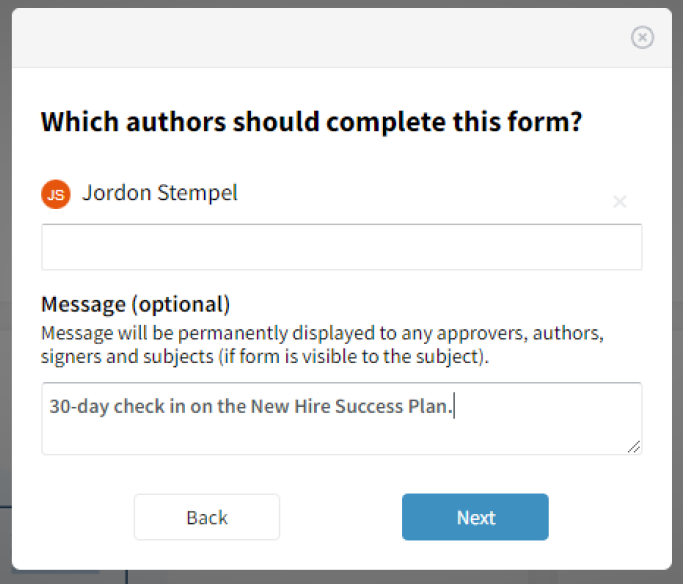
- List yourself in the author field and optionally add a message.
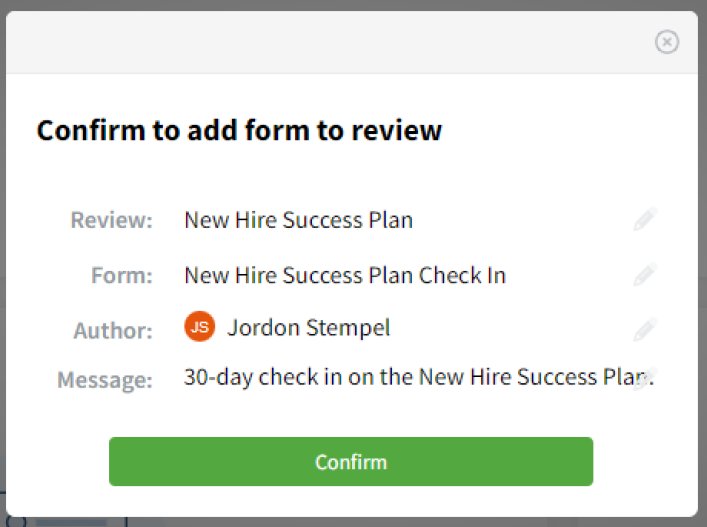
- Double-check your settings and click Confirm.
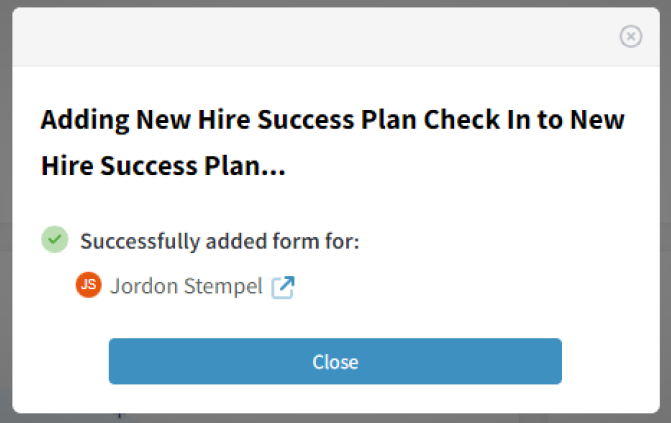
- You should see a successful confirmation message.
- Refresh the employee's dashboard and click on the newly created check-in.

- Click on Select all Active Goals.
- Discuss the goals in the notes field.

- At the end, do an overall/recap of the employee's progress.
- If applicable, you can create new goals at the bottom of the page.
- Click Submit when ready.

