

How to Share in PreVeil

Last updated: Jul 16, 2024
33
views

- Locate folder you wish to share in PreVeil Online (Under the DRIVE tab)

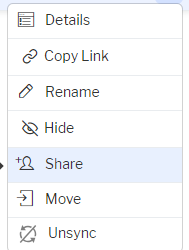
- Click the 3 dots on the right-hand side

- Click Share
- Enter email address and hit enter (notice that the recipient will be invited to join if they are not already in the PreVeil system (see more below if this is the case))
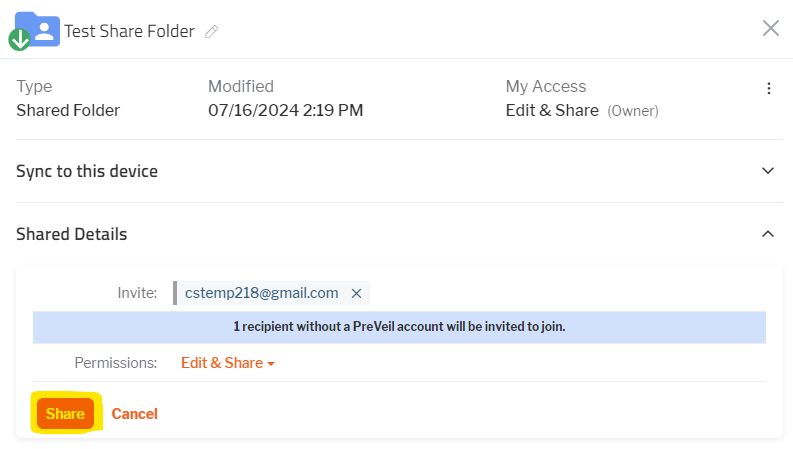
- Click Share.
- If they are not already in the system, you must wait until the accept access, and create an account. Once they have created the account, you will need to refollow these steps and reshare the folder with them. Once that is complete, they will get access. You can edit their permissions as needed as well.

