

Turn off the New Outlook

Last updated: Feb 28, 2024
57
views

Did you try clicking on the Try the new Outlook button and decide it's not for you?
Are you confused why there is no option to easily change it back?
Do you wish Microsoft understood the definition of "try"?
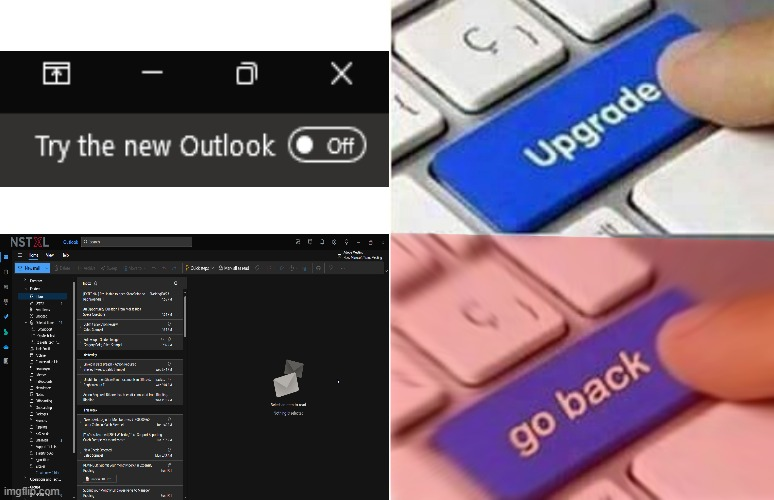
If you have gotten stranded on the new Outlook and want to change back, follow the instructions below. For some reason, Microsoft has not included a way to toggle Outlook back in the settings within Outlook, but it's easy to fix by using this one hack they don't want you to know about.
- Save any open work in Outlook and close the application
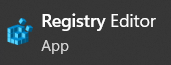
- Through the Windows start menu, search for and open the Registry Editor app
- In the address bar just below File, Edit, etc, replace what is there with the following text:
Computer\HKEY_CURRENT_USER\Software\Microsoft\Office\16.0\Outlook\Preferences

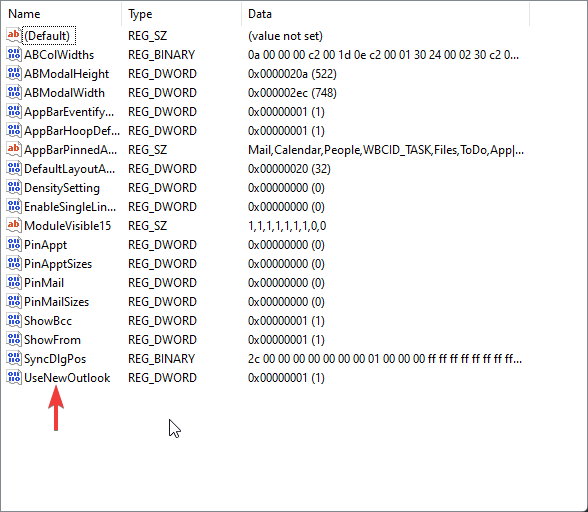
- In the list of items on the lower right panel, double-click to open UseNewOutlook
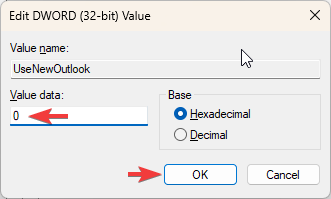
- In the menu that opens, change the value to 0 (zero) and click OK
- Close Registry Editor and re-open Outlook: it should now be back on the classic look!

